
Your company has issued laptops to your employees so that they can work from anywhere. That’s great… until you realize that some of your employees might go on vacation to a country that is not on your government’s Christmas Card list… in fact, you know that your data compliance policy forbids access from those countries. What do you do? If your company uses Microsoft 365 then it is pretty easy to do. This article will guide you through creating a Network Location for a country that you can block… or at the very least, from which you would require identity confirmation.
Microsoft’s cloud consists of many interconnected systems that provide different functionality. The Identity and Access Management (IAM) is all managed under Microsoft Entra. In fact, your user account, formerly known as an AzureAD account, is now called an EntraID account. Identity is only one aspect of Entra though, and Access Management and Protection is a big part of it. What we want to do is first create a Named Location, and once that is done then we will create a Conditional Access Policy to prevent or limit access.
Navigate in your favourite web browser to https://entra.microsoft.com and authenticate with your elevated account.
In the menu on the left, expand Protection and click Conditional Access.
CREATE YOUR NAMED LOCATION
In the Conditional Access Overview menu under Manage click Named Locations.
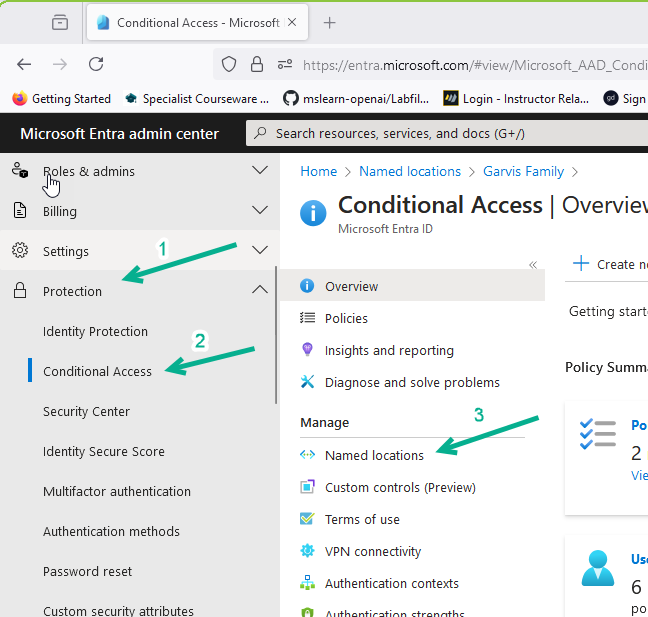
In the Conditional Access | Named Locations blade click +Countries Location to add a list of countries from which users should not be able to access your data. The Internet Assigned Numbers Authority (IANA) assigns blocks of IP addresses to different countries, so it is relatively easy to block an entire country. However there is also the option in the next step to determine the location by GPS coordinates, in case someone decides to mask their source IP address.
- On the right of your browser, the New location (Countries) sidebar will open. Name your net location something you will remember – for example, Embargoed Nations. Please note that the 2021 CompTIA Inclusive Language Policy specifically forbids the term Enemy Nation, and even forbids naming ‘Specific countries considered enemies of a country.’ Of course, when we are discussing rogue nations that are trying to annihilate you it is important to make sure you do not use any language that might be considered offensive… so be careful and do not name this policy ‘Enemy States’ or ‘Iran’.
- Under Country Lookup Method you can select by either IP Address or GPS Coordinates. Pick one. If you would like to do both then you will need to create a second Named Location.
- From the list of countries you can select all of the countries that you would like to block.
- At the bottom of the sidebar click Create.
Okay, you have now created your Named Location… now we will show you how to block it!
CREATE A CONDITIONAL ACCESS POLICY
We will stay in the Protection – Conditional Access blade that we were in before. Now we will select the Policies blade.
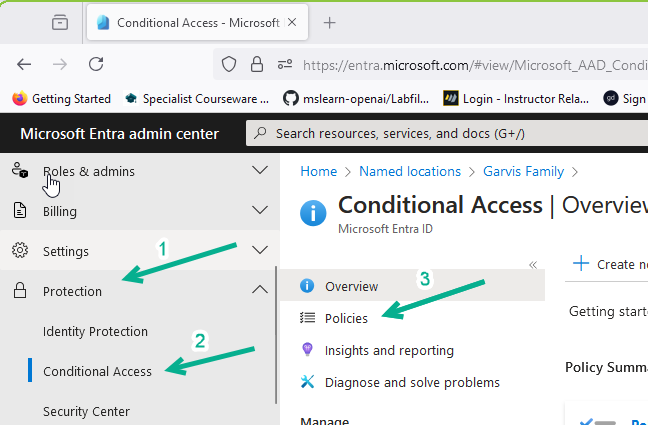
In the Conditional Access “| Policies blade we will click +New Policy. The New page will open up.
- Name your policy… preferably something that will be easy to understand, like Blocked Nations.
- Under Assignments click 0 users and groups selected. The options to include either None, All users, or Select users and groups will appear. Select All. If you would like to exclude a group from this policy then you can do so in the Exclude tab in the sub-menu.
- Under Target Resources click No target resources selected. The drop-down list of what this policy applies to will appear. For this example we will include Cloud apps. We will also click the radio underneath for All cloud apps. As with the previous step, you can include exclusions. You can also get a lot more granular with these policies, and I invite you to explore those options as you test.
- Under Network click Not configured. The Control Access menu will appear. Click Configure to Yes, then click the option Selected networks and locations. The sidebar Select Networks will appear. Select your new Named Network and click Save.
- Under Access Controls click 0 controls selected. The Grant sidebar will appear on the right. Click Block access, then click Select at the bottom.
- Under Enable Policy select On.
Please take note that under the Enable Policy option you have the option to exclude the current user from the policy. It is a good way to ensure that if you accidentally make a large blunder you will be able to go in and undo it.
Click Create.
There are a lot options that we can tweak to accomplish a lot more than just blocking out a country of course. We can limit what users can do remotely, such as giving them full access to a resource when working from the office, but only Read access when connected remotely… or even allow them different access when working from home than when they take their laptop to work at the local café. We can require multi-factor authentication when connected to a Public Wi-Fi. We can do so much more. Our companies can create granular policies to ensure usability while maintaining compliance to governance policies. It is up to you – or rather it is up to your corporate Security, Compliance, and Management teams to decide what policies to create. As the Administrator it is your job to implement the policies they hand down to us. If your organization is in the Microsoft Cloud, then it begins with Entra.
 The World According to Mitch
Leave a comment