
As I rebuilt my lab environment recently I decided to add a component that my previous lab environment did not have… Entra Hybrid Joined workstations. It had been a couple of years since I last installed Entra Connect (far enough back that at the time it was called Azure AD Connect, and the term Hybrid Azure AD Joined, or HAADJ, was appropo. We still use the term HAADJ, but it is an anachronism. In any event, I configured it, and decided to go one step further than I had the last time I configured it in my lab… the Hybrid.
Everything was going fine… the configuration is actually pretty simple. I created the Organizational Unit (OU) in my Active Directory Domain Services (AD DS), and I created the Group Policy Object (GPO) that would automatically configure the machines that I placed into it as Hybrid Devices. I logged into the machines and was thrilled to see my devices appear in the list of Entra ID devices. I only made one little oopsie… the user account I connected them with was unlicensed. No problem, right? Assign a license for Microsoft 365 and everything will work out.
Not so much.
Don’t get me wrong, the computers were happily Entra ID joined and that side worked just fine… but they were not configured for Mobile Device Management (MDM). For that, the license would have needed to be assigned in advance.

(Note that the output in the screen capture is not complete; only the relevant portions are shown)
I found a lot of solutions online (and from Copilot) that did not work. What finally did work was the following command (which will only work from an Administrator-run PowerShell or Command Prompt):
c:\Windows\System32\deviceeenroller.exe /c /AutoEnrollMDM
Once I ran that, it took only a few minutes for my machine to appear in my Intune. As shown:
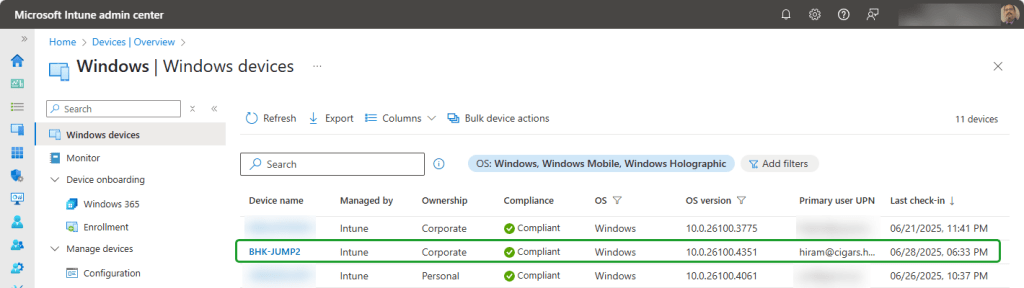

It is a simple solution, but it was not so easy to find. I hope this will help some of you!

 The World According to Mitch
Leave a comment